

Start every Bakersfield structural ePlan submittal at the city's Avolve portal, where you create an account and choose Building Permit. Uploads happen in ProjectDox after you receive the system's automated email link, and the review only starts once you press the final Submit button there. The rule that decides whether your files even work: single-sheet PDFs, a numeric prefix, and file names capped at 35 characters with no special characters. Get that wrong and your revisions won't overlay correctly, no matter how clean your calculations are.
TL;DR:
- Files over 35 characters or containing dashes will be rejected; use a strict naming convention with numeric prefixes and concise descriptions.
- Upload each plan sheet as a single-sheet PDF, while supporting documents like calculations can be multi-page PDFs, to meet city requirements.
- Keep exact file names when revising sheets to ensure overlay review works correctly; add numeric suffixes for new sheets to maintain order.
- The review process begins only after pressing final Submit in ProjectDox, which triggers the review clock, not at initial application or upload step.
- Preparing shear wall reports with dedicated tools like ShearWise Pro can significantly reduce review corrections and cycle time.
Table of Contents
- Which Official Portals Handle Bakersfield ePlan Submittal Structural Reviews?
- Which Structural Documents Belong in Your Submittal?
- How Do You Submit Structural Plans Through the Bakersfield ePlan Process?
- Why Do Structural Submittals Get Rejected, and How Do You Avoid It?
- What Happens After You Submit, and What Will It Cost?
- What Small Process Changes Actually Save Weeks on Bakersfield Submittals?
- A Faster Way to Prepare Reviewer-Ready Shear Wall Reports
- Authoritative Links and Guidance Documents
- Sources
- FAQ
Which Official Portals Handle Bakersfield ePlan Submittal Structural Reviews?
Bakersfield runs its electronic structural submittals through a small set of connected systems, and knowing which one does what saves you from wasted clicks.
Your entry point is the city's Avolve cloud portal at bakersfield-ca-us.avolvecloud.com. This is where you register, pick a service such as Building Permit or Planning Application, and enter your project name. Once your application clears that first step, the city emails you an upload link that routes into ProjectDox, the file-upload and review environment where reviewers actually mark up your sheets.
You'll also see references to Accela and Click2Gov scattered through city permitting pages. These systems support other permit categories and payment functions, but for structural plan review, ProjectDox is where the technical work happens.
- Avolve portal: account creation, service selection, application submission
- ProjectDox: file uploads, reviewer markups, final Submit trigger
- Accela / Click2Gov: referenced for certain permit types and payment processing
- Kern County's electronic document review page: applies when your project falls under county jurisdiction instead of city limits
Which Structural Documents Belong in Your Submittal?
A complete structural package for Bakersfield includes more than the framing sheets. Reviewers expect a full picture of how the building resists gravity and lateral loads, and gaps in that picture are the fastest way to draw a correction letter.
Your document set should include:
- Complete structural plan set, uploaded as single-sheet PDFs
- Structural calculations, including shear wall and hold-down analysis
- Soils report
- Foundation and framing plans
- Shear wall schedules and hold-down details
- Title 24 energy documentation, when the project scope requires it
File format matters as much as content. Bakersfield's naming standards require plan sheets to be uploaded as single-sheet PDFs, while supporting documents like calculations and soils reports can stay as multi-page PDFs. Every file name needs a numeric prefix for display order, a description capped at 35 characters, and no dashes or special characters.
Here's the number that matters: file names over the 35-character limit get rejected by the system outright, regardless of how correct the underlying drawing is.
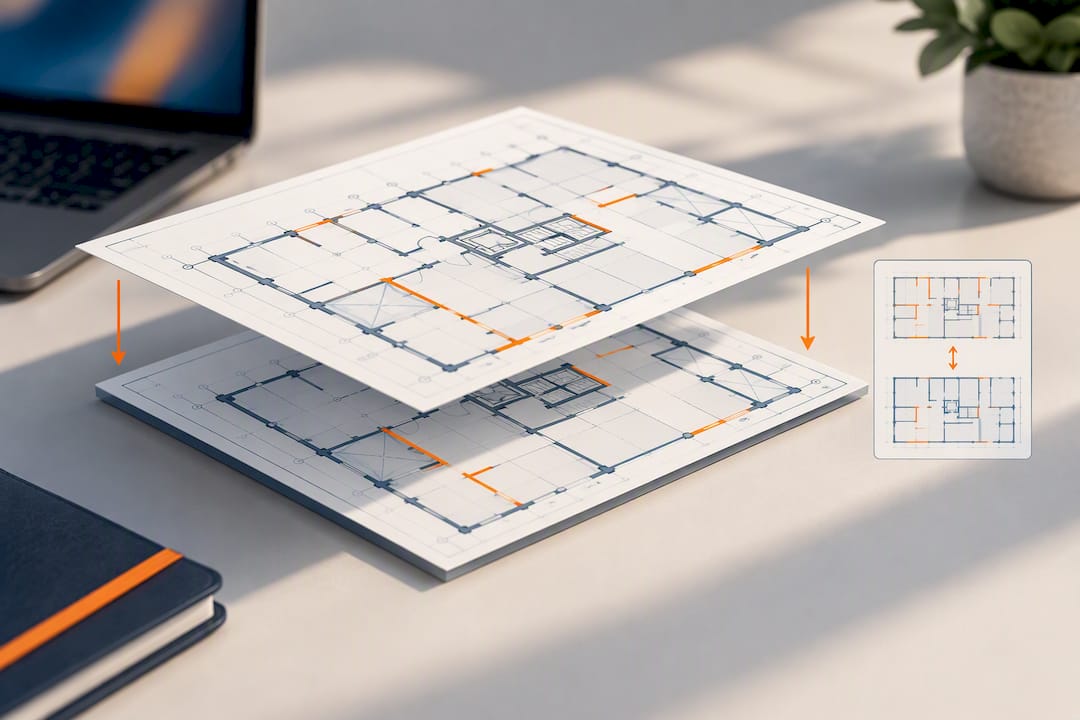
That naming discipline exists for a technical reason, not a bureaucratic one. The city's ProjectDox system overlays files sharing an identical name to compare revisions against originals. Break the name and you break the overlay, which means reviewers lose the ability to see what changed between versions.
How Do You Submit Structural Plans Through the Bakersfield ePlan Process?
The workflow runs in a fixed sequence, and skipping ahead usually costs you a resubmittal later. Follow it in order:
- Create an account at bakersfield-ca-us.avolvecloud.com and select the correct service for your project, typically Building Permit.
- Name your project using a unique, descriptive format. The city's own example follows a pattern like "New Restaurant Valley Plaza 06142022," combining the work description, location, and date.
- Accept the terms, complete the application fields, and submit. You'll receive an automated email containing an upload link shortly after.
- Log into ProjectDox through that email link, upload every plan sheet and supporting document into its designated folder, then press the final Submit button. That click, not the earlier application submission, is what actually starts the review clock.
Revisions follow their own logic. Keep the exact same file name for any sheet you're revising so the system's overlay tool can compare it against the prior version. If you're adding a brand-new sheet that didn't exist before, attach a numeric suffix at the front of the file name, like .1 or .2, to preserve the sheet order reviewers expect.
Pro Tip: Build a file-naming template in a spreadsheet before you touch the portal. Lock in your numeric prefixes and character counts for every sheet type so revision cycles don't force you to rename half your set under deadline pressure.
Why Do Structural Submittals Get Rejected, and How Do You Avoid It?
Most rejections trace back to three causes: disciplines that don't agree with each other, missing supporting reports, or file mistakes that have nothing to do with engineering quality. A shear wall schedule that doesn't match the architectural floor plan, a soils report left out of the upload, or a multi-page PDF submitted where a single-sheet file was required. All three stop a reviewer cold.
Run a precheck before you touch the final Submit button:
- Compare architectural, structural, and MEP notes sheet by sheet for consistency
- Confirm Title 24 energy documentation and the soils report are both in the packet when required
- Verify every plan sheet is a single-sheet PDF, not bundled into a multi-page file
- Double-check every file name against the 35-character, no-dash rule before upload
A quick sheet-by-sheet pass against the city's submittal checklist catches the majority of the corrections reviewers flag at intake, particularly missing setbacks, inconsistent scope descriptions, and absent Title 24 or soils documents. ShearWise Pro's blog covers this precheck process in more depth in its Bakersfield plan check submittal rules guide, and its companion piece on common structural drawing omissions walks through the specific gaps that trigger corrections most often.
Pro Tip: Ask your MEP consultant to sign off on wall locations before your structural set goes final. A checklist like the one in FutureGen's MEP coordination workflow helps catch clashes between disciplines before they show up as a plan-check comment.
What Happens After You Submit, and What Will It Cost?
Once you hit final Submit in ProjectDox, you'll receive a tracking number tied to your application. The city's municipal code gives the planning director up to 30 days to determine whether an application packet is complete, so build that window into your project schedule.
- Fee schedules and processing timelines are published through the city's Building Division
- Expect an automated email confirming your upload link and assigned project number
- For county-jurisdiction projects, contact Kern County through its electronic document review page for submission questions
What Small Process Changes Actually Save Weeks on Bakersfield Submittals?
The engineers who breeze through Bakersfield's first review almost never have better drawings than everyone else. They have better habits. A saved file-naming template, a final cross-discipline check before that first upload, and a five-minute precheck of sheet sizes, Title 24 status, and soils documentation catch most of what would otherwise bounce back as a correction letter.
None of that is glamorous work. It's also the difference between a two-week resubmittal cycle and a first-pass approval. Contractors and property owners who treat the naming convention as an afterthought are the ones who end up refreshing their email for a week waiting on a ProjectDox link that never should have taken that long to arrive.
— Evalin
A Faster Way to Prepare Reviewer-Ready Shear Wall Reports
ShearWise Pro gives you a faster path to the shear wall calculations Bakersfield reviewers actually check line by line. Instead of rebuilding hold-down force tables, transfer strap schedules, and wall line layouts by hand for every revision cycle, you organize them once inside ShearWise Pro and export a clean, single-sheet-friendly PDF built for the kind of upload ProjectDox expects.
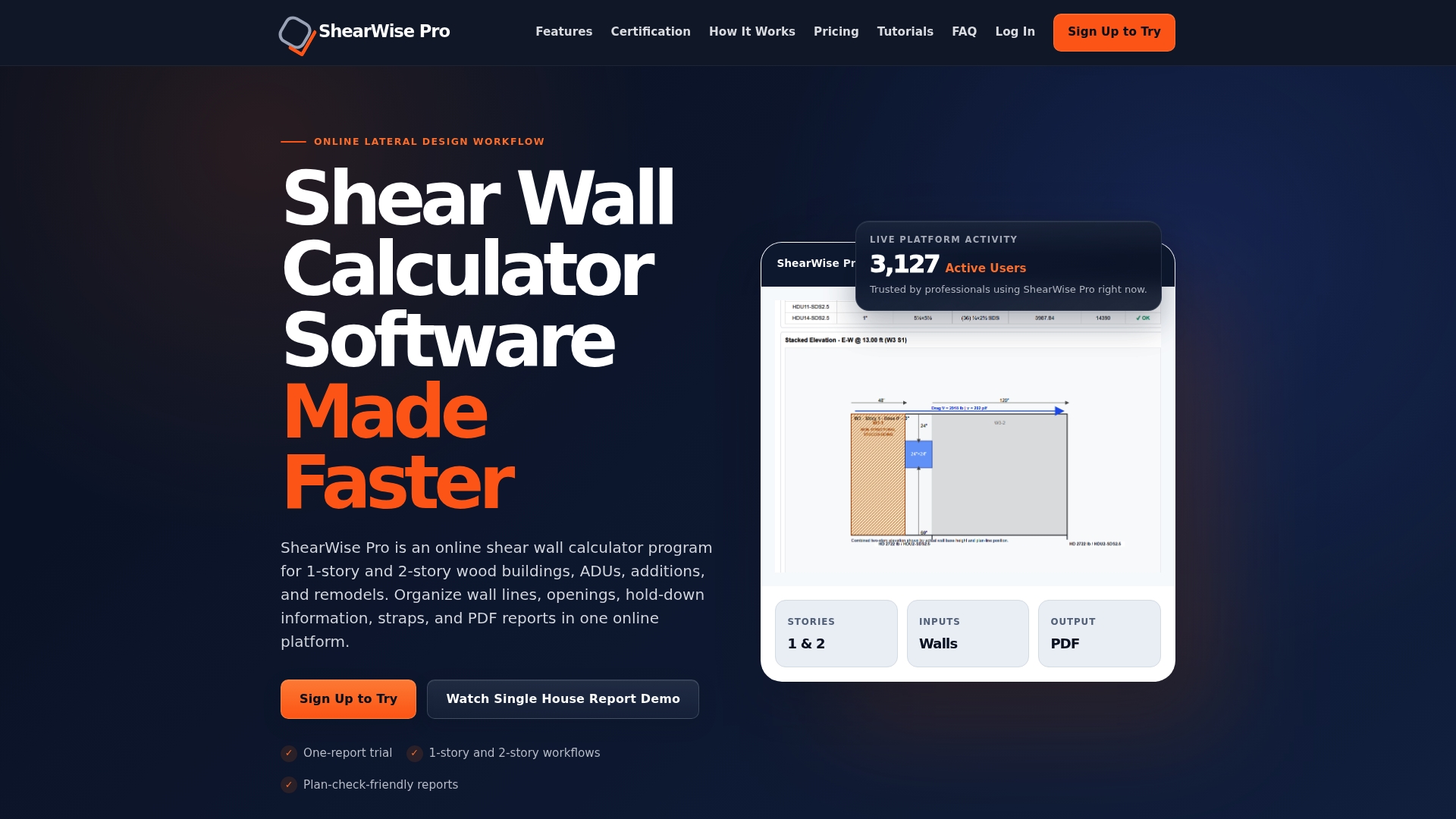
That focus matters because ShearWise Pro was built specifically for 1-story and 2-story wood-framed projects, not as a stripped-down mode of a general-purpose structural program. Full-height segments, story drift checks, and roof information all live in the same report, which means fewer loose spreadsheets to reconcile before you name your files and upload them. If your last submittal came back with comments on shear wall calcs specifically, a tool built around that exact output can shrink the next revision cycle.
Try it with the Three-Report Trial at no cost, or move straight to the Professional Monthly plan at $29 per month if you're preparing submittals regularly. Annual users pay $250 per year on the Professional Annual plan. Check the tutorials library first if you want to see the report format before you start your next Bakersfield structural set.
Authoritative Links and Guidance Documents
- Development Center — Avolve portal access
- Avolve file naming standards
- Online planning applications and ProjectDox upload guidance
- Kern County electronic document review
- California Building Code Chapter 1, scope and administration
Sources
- Development Center — City of Bakersfield
- Avolve file naming standards — City of Bakersfield
- Online planning applications — City of Bakersfield
- Guidance document and naming convention — CivicPlus / City guidance
FAQ
What Is the File Name Character Limit for Bakersfield ePlan Submittals?
File names cannot exceed 35 characters, must start with a numeric prefix, and cannot contain dashes or special characters. Going over the limit or using a banned character causes the upload to fail in ProjectDox.
Do Structural Plan Sheets Need to Be Single-Sheet PDFs?
Yes, every plan sheet must be uploaded as an individual single-sheet PDF. Supporting documents like structural calculations and soils reports are the exception and can be submitted as multi-page PDFs.
How Do I Submit a Revised Sheet Without Breaking the Overlay?
Keep the exact same file name as the original sheet so ProjectDox's overlay tool can compare the old and new versions automatically. If you're adding a sheet that never existed before, place a numeric suffix like .1 at the start of the file name to keep the sheet order correct.
What Should I Do if I Never Receive the ProjectDox Upload Email?
Check your spam folder first, since the automated upload link typically arrives shortly after you submit your application. If it still hasn't arrived, contact the Building Division directly to confirm your application was received and processed.
Can ShearWise Pro Help Prepare Files for ProjectDox Upload?
ShearWise Pro generates shear wall calculation reports as clean PDFs designed to fit reviewer-friendly, single-sheet formatting expectations. Pricing starts with a free three-report trial, with paid plans available once you're ready for ongoing project work.