

You can create, show by default, export, and print bookmark lists from PDF reports using authoring tools, Acrobat, scripts, or small utilities. Bookmarks are navigation links that jump to saved page views. Export tagged PDFs from Word or InDesign, edit in Acrobat, and set the file to open with the bookmarks panel visible. For best practice, follow the W3C PDF2 technique.
TL;DR:
- For reports you will revise, generate bookmarks from Word or InDesign heading styles and table of contents entries; manual edits suit one off fixes.
- Acrobat versions vary, so export bookmark labels and page numbers with a JavaScript, Action, or utility; test scripts on a copy and verify results.
- Set Initial View to Bookmarks Panel and Page when key material lies beyond page one; the setting applies only to the saved file.
- Right click a bookmark and choose Print Page(s) to print its pages, but bookmarks pointing to another file will not print useful content.
- Mirror the report’s heading hierarchy, keep labels consistent with its table of contents, and retain tags because bookmarks do not replace accessible document structure.
Table of Contents
- How do you create PDF report bookmarks?
- How do you export a list of PDF bookmarks?
- How do you make a PDF open with bookmarks showing?
- What is the difference between bookmarks and hyperlinks?
- How do you print bookmarked sections of a PDF?
- How should you organize bookmarks in a professional report?
- Why do tidy bookmarks matter for permit review?
- How do we help you produce bookmark-ready PDF reports?
- FAQ
- Sources
How do you create PDF report bookmarks?
You have two routes: generate bookmarks from the document structure, or build them by hand in Acrobat. Generating them is faster and keeps labels consistent with your headings. Authoring workflows in Word, InDesign, and OpenOffice convert heading styles and table-of-contents entries into bookmarks on export when you select "Convert Word Headings into Bookmarks" and "Tagged PDF." InDesign works the same way: entries in a generated table of contents land in the Bookmarks panel automatically.
Manual editing suits ad-hoc fixes, renaming, and setting a precise view. Regenerating suits any report you will revise, because a new export rebuilds the whole tree. In Acrobat, the bookmark tools let you create, rename, nest, and set destinations:
- Open the Bookmarks panel and select the page or view you want to link.
- Choose New Bookmark and type a short, clear label.
- Set the destination by navigating to the exact view and updating the bookmark.
- Drag the bookmark under a parent to nest it.
- For a tagged PDF, use New Bookmarks From Structure to build the tree in one step.
Pro Tip: Fix labels in your source document and re-export instead of renaming dozens of bookmarks by hand. The next revision then keeps them correct.
How do you export a list of PDF bookmarks?
Not every Acrobat version offers a one-click bookmark report, so most people use a script, an Action, or a small utility. Community threads and exchange sites host free bookmark-report scripts and Actions that export bookmark text and page numbers, and some low-cost one-time tools do the same without a subscription.
Your main options:
- Acrobat JavaScript or an Action: run it through Tools > Action Wizard, or place the script in the Actions folder, then choose the output type.
- Output format: pick PDF for a printable list, or TXT or CSV when you want to clean up labels and page numbers in a spreadsheet.
- Third-party utilities: a small dedicated tool can write or append bookmark lists when scripting is inconvenient. Weigh free scripts against paid tools on reliability and support.
- Extraction for other workflows: structured PDFs are easier to process downstream, as this PDF takeoff workflow for trade subs shows for counts and quantities.
Pro Tip: Test any script on a copy of the file first and compare the output against the Bookmarks panel before you rely on it.
How do you make a PDF open with bookmarks showing?
Open the file in Acrobat and go to File > Properties > Initial View. Under Navigation Tab, choose Bookmarks Panel and Page. The next time anyone opens the file, the panel appears beside the document page.
- To turn it off: set the Navigation Tab to Page Only, as the same Initial View property explains.
- Scope: this is stored in each file, not in the application. A change affects only the document you saved, so repeat it for every report.
- Standards view: the W3C PDF2 technique recommends configuring files to show bookmarks by default when appropriate.
- Our recommendation: turn the panel on for any report where critical content sits past page 1, such as calculation summaries or appendices, so reviewers see the structure right away.
What is the difference between bookmarks and hyperlinks?
Bookmarks live in the navigation pane. Per the W3C technique, they are interactive links with representative text that jump to specific views or pages. Hyperlinks are defined areas on a page that run an action. Acrobat's link tool offers "Go to a page view," "Open a file," "Open a web page," or a custom action, along with appearance options.

In practice, a bookmark is structural and always visible in the side panel. A hyperlink sits inside page content and can be styled to stand out. Use bookmarks for high-level navigation. Add hyperlinks when a sentence needs to point to a calculation page, an attachment, or an outside reference.
How do you print bookmarked sections of a PDF?
Acrobat can print only the pages a bookmark points to. Open the Bookmarks panel, right-click a bookmark, and choose Print Page(s). Only bookmarks that point to real page content print correctly, so a bookmark that opens another file will not give you a useful result.
To hand reviewers a printable bookmark list:
- Export the bookmarks to PDF or text with a script or Action.
- Tidy labels and page numbers in a spreadsheet if needed.
- Print the list, or merge it into the report as a one-page contents sheet.
Pro Tip: Put a front-matter contents page at the start of the file. Reviewers who print the package can then find any section without opening the panel.
If you also need to control file size for local review, our guide on keeping trade PDFs a manageable size covers packaging.
How should you organize bookmarks in a professional report?
Build the hierarchy to mirror your headings: major topics as parents, sub-sections as children, with glossary and appendices at the end. Best practice is to reflect the document's logical hierarchy and include glossary and index sections so they appear alongside primary content.
- Keep labels short and identical to the report's table of contents.
- Put the calculation summary and key pages near the top of the tree.
- Treat bookmarks as a convenience for sighted users, not a replacement for tags. Export a Tagged PDF and create both.
- Decide by content, not page count: add bookmarks when important material appears beyond the first screenful, a view practitioners on the Acrobat Users forum share.
Standards set no minimum page count for bookmarks. The decision is left to author judgment and user needs, and many professionals open the panel automatically for a useful overview.
Why do tidy bookmarks matter for permit review?

Reviewers rarely read a calculation package front to back. They hunt for the lateral summary, the hold-down schedule, and the drift check, then move on. Clear bookmarks cut that hunting time, and less hunting means fewer questions and fewer resubmittals.
Bookmarks cost almost nothing, yet reviewers notice them. I treat them as part of professional PDF hygiene, alongside readable thumbnails, sensible file names, and sizes within the reviewing office's limits. Good document control compounds across a project, which is the point of our piece on construction document control.
— Evalin
How do we help you produce bookmark-ready PDF reports?
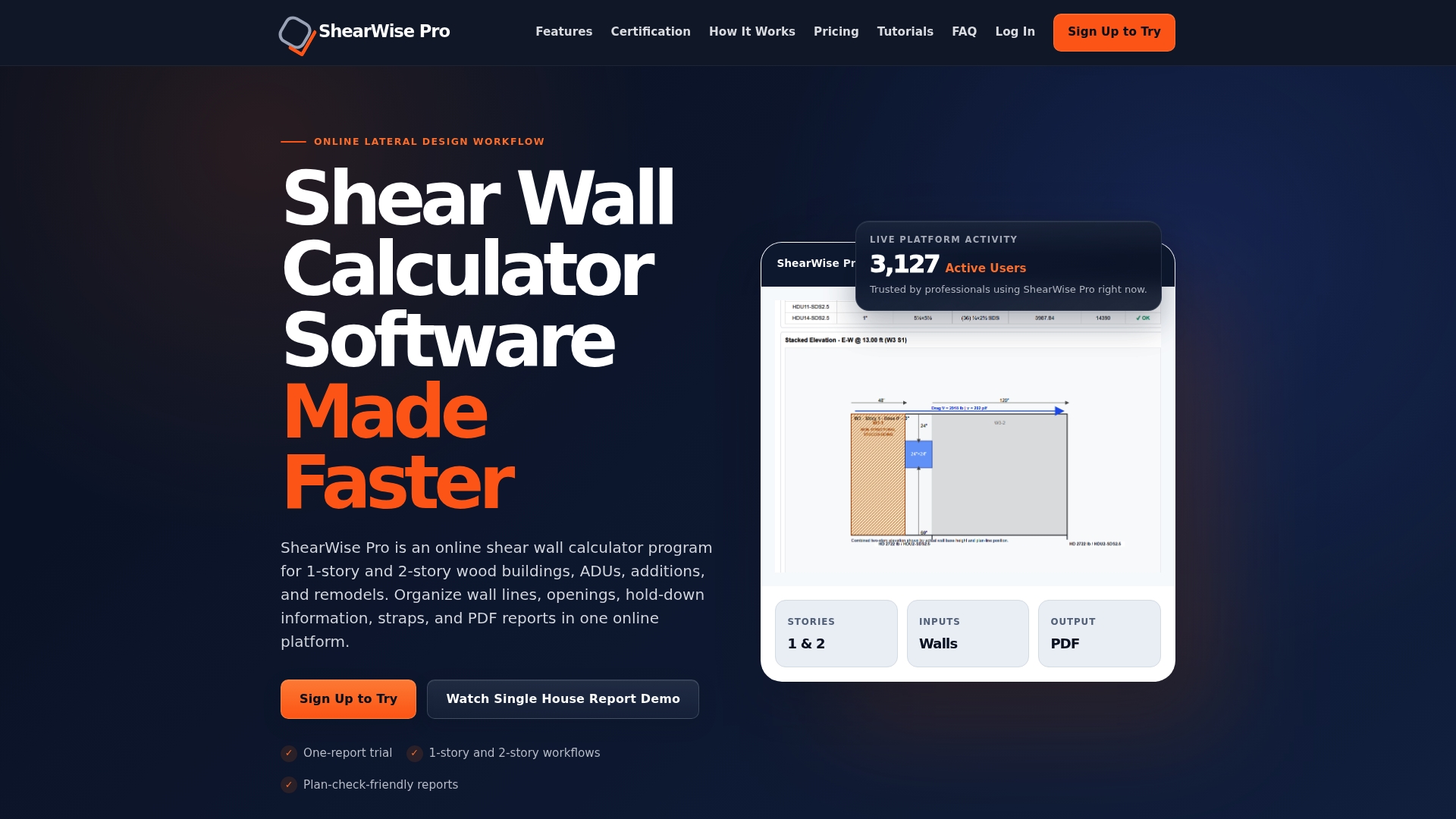
ShearWise Pro is our online shear wall calculator for 1-story and 2-story wood-framed buildings. We generate organized PDF reports, so your calculations reach reviewers in a format they can scan quickly.
- Try the three-report trial at no cost, with watermarked reports.
- Choose Professional Monthly at $29 per month or Professional Annual at $250 per year.
- See the plans page to start, or read our shear wall software workflow.
FAQ
How do I make a PDF open with bookmarks showing?
Set File > Properties > Initial View > Navigation Tab to Bookmarks Panel and Page, then save the file. The setting is stored in that document only, so repeat it for each report you want to open with the panel visible.
What is the difference between bookmarks and hyperlinks in a document?
Bookmarks appear in the navigation pane and jump to saved page views. Hyperlinks are clickable areas on the page that can go to a page view, open a file, or open a web page.
How do I extract bookmarks from a PDF?
Use an Acrobat JavaScript, an Action, or a small third-party utility to write bookmark text and page numbers to a PDF, TXT, or CSV file. Free community scripts exist, and you can clean up the output in a spreadsheet.
Can I print only the pages a bookmark points to?
Yes. Right-click the bookmark in the Bookmarks panel and choose Print Page(s). This works only for bookmarks that point to actual page content.